See all jobs as columns you drag between, or as a calendar by the hour. A technician can also follow his jobs in the calendar app on his phone.
What we did
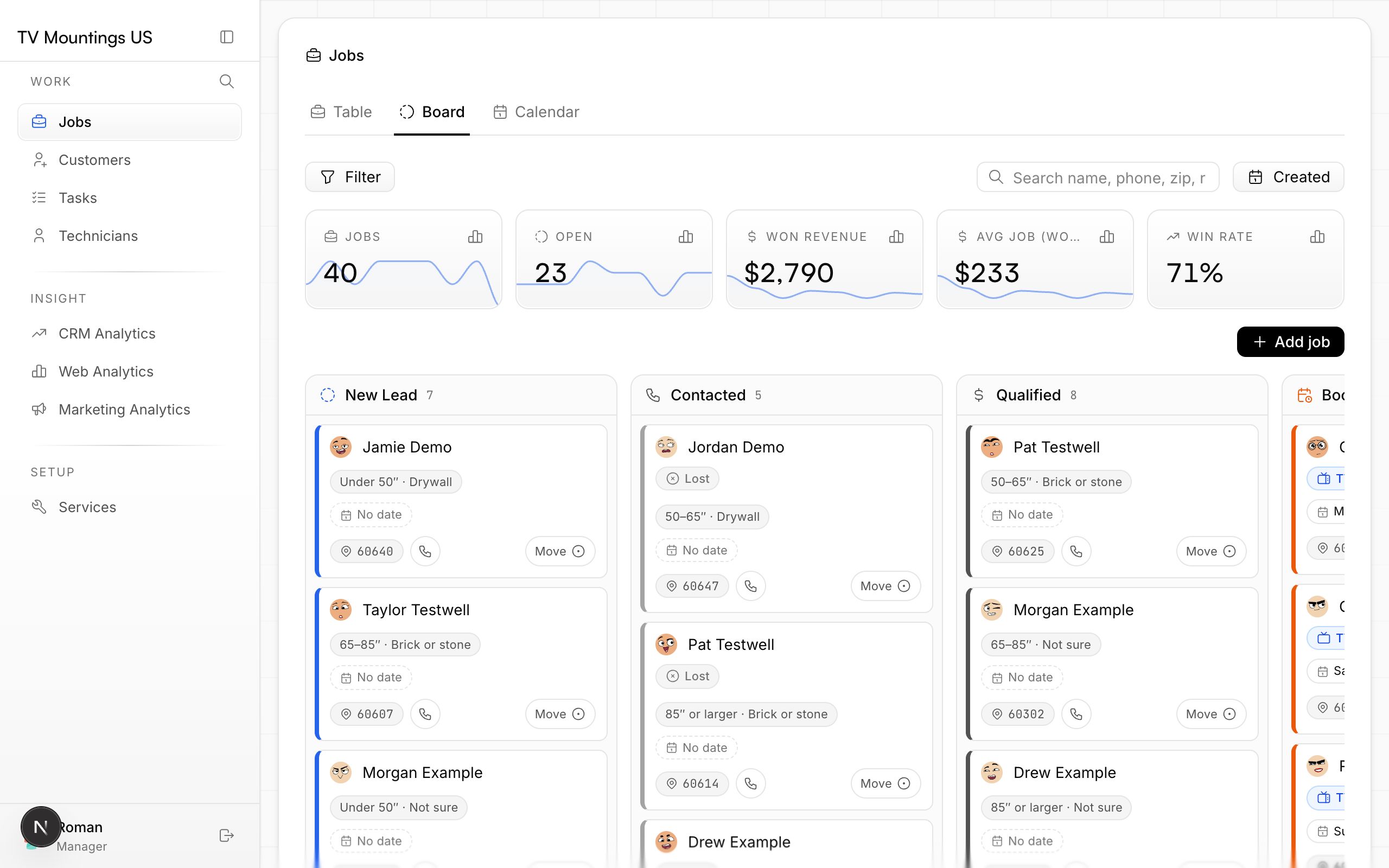
- Board: one column per step. Drag a card to move a job forward, or use the Move menu. Each card shows the customer, the services, the visit time, the zip code and a call button. Each column shows its count and total.
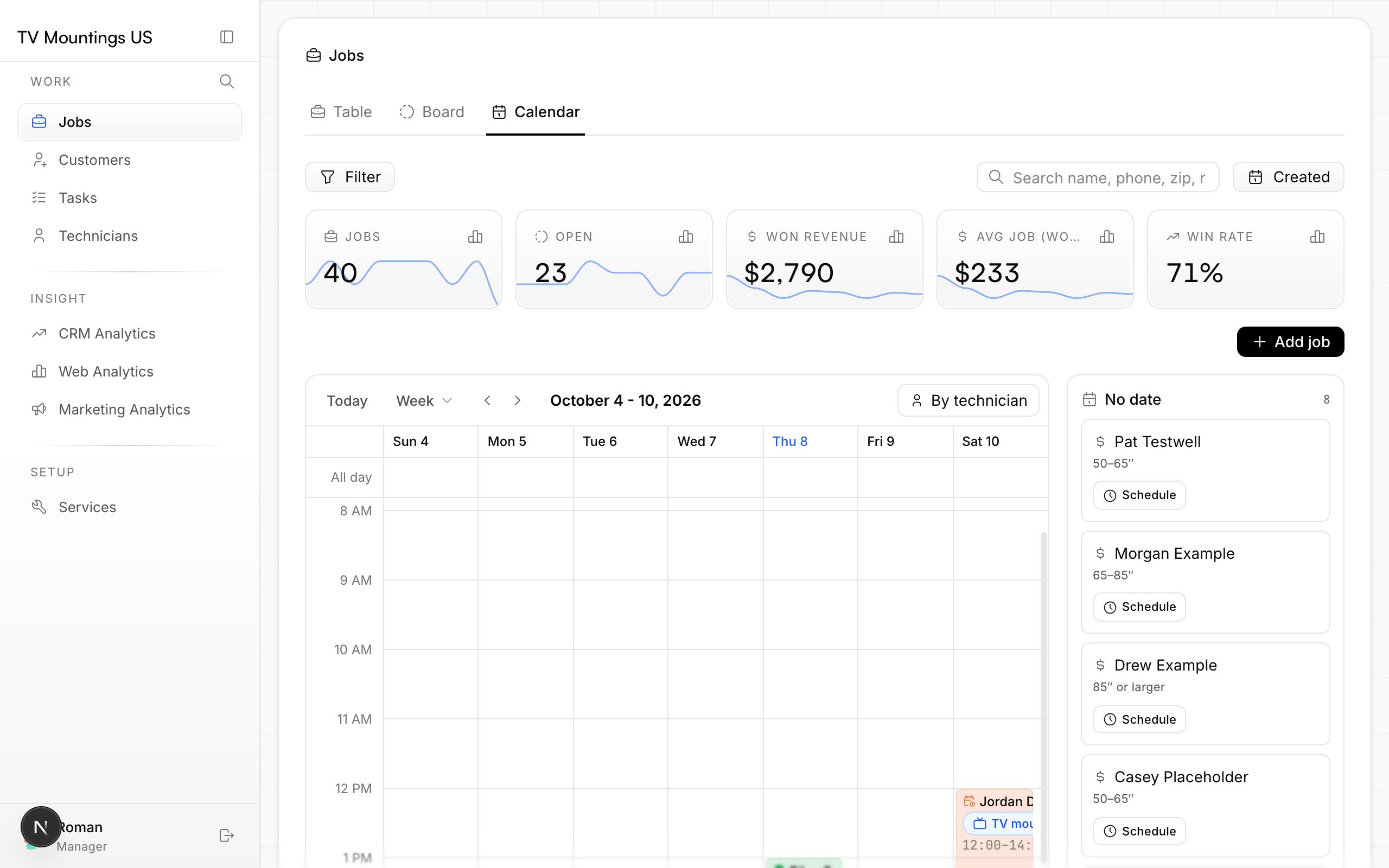
- Calendar: week and day views, and a view per technician. Drag a visit to move it, stretch it to make it longer, or drag on an empty slot to create a new job at that time.
- Visit window instead of a single date: "arrive between 2 and 4 pm".
- A calendar link per technician: add it once to the phone's calendar app and every booked visit appears there by itself.
Table ─── the full list, filters, export
Board ─── New Lead │ Contacted │ Qualified │ Booked │ Completed
              drag a card ───────────────────▶
Calendar ─ Mon  Tue  Wed  Thu  Fri  Sat  Sun
              2–4 pm: Pat T., TV mounting 76"+
              └─▶ technician's phone calendar
How it looks
Screenshots of the CRM use sample customers, so no real customer data is shown.
Why it matters
You see at a glance what is waiting, what is booked and where the technician needs to be — without opening each job.